

 MetaDesign Solutions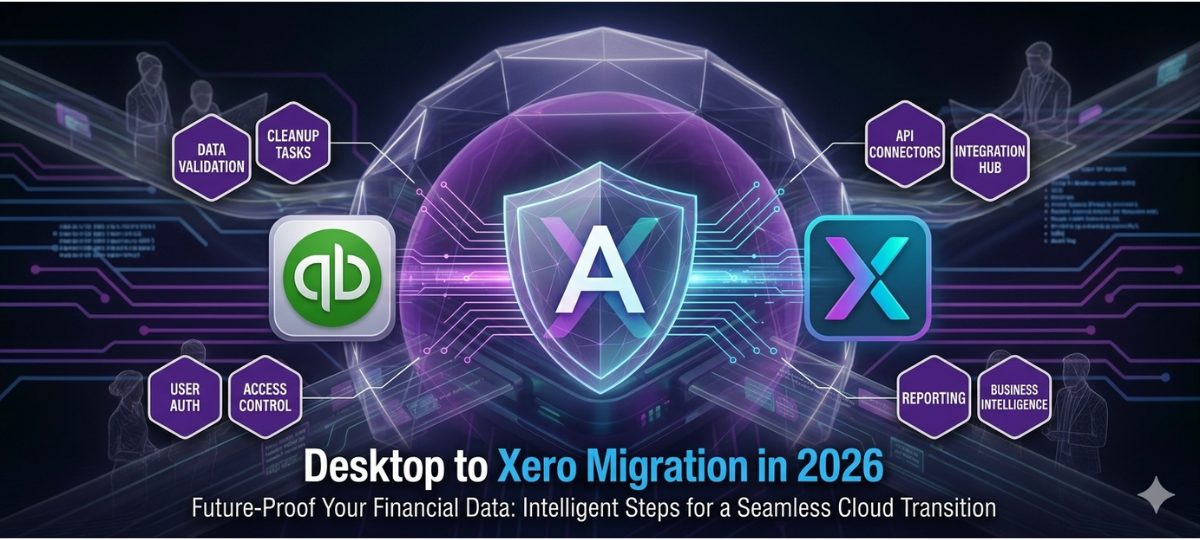

Businesses around the world are transitioning to cloud accounting platforms to improve efficiency and scalability. One of the most common accounting system upgrades is QuickBooks Desktop to Xero migration.
Xero offers modern cloud accounting features including automation, integrations, and real-time financial reporting. As a result, many organizations are choosing to switch from QuickBooks Desktop to Xero Cloud to modernize their financial systems.
This guide explains everything businesses need to know about QuickBooks to Xero data migration in 2026, including the benefits, migration process, and best practices.
Why Businesses Are Moving from QuickBooks to Xero
QuickBooks Desktop has been a reliable accounting tool for many years, but cloud accounting platforms now offer greater flexibility.
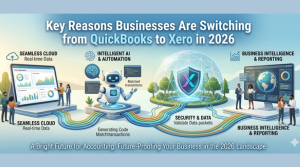
Key reasons businesses move from QuickBooks to Xero include:
Cloud Accessibility
Xero allows users to access accounting data anytime from any device.
Automation
Automated bank reconciliation, invoicing, and expense tracking reduce manual accounting work.
Integration Ecosystem
Xero integrates with over 1,000 business applications.
Real-Time Reporting
Financial dashboards provide real-time insights into business performance.
What Data Can Be Migrated from QuickBooks to Xero?
During QuickBooks Desktop conversion to Xero, several financial records can be transferred.
These include:
- Chart of accounts
- Customers and vendors
- invoices and bills
- bank transactions
- financial reports
- historical transaction data
Accurate QuickBooks data migration ensures financial continuity.
Step-by-Step QuickBooks to Xero Migration Process
Step 1 – Assess Existing QuickBooks Data
Review accounting records and clean outdated data.
Step 2 – Prepare QuickBooks Files
Ensure the QuickBooks database is complete and reconciled.
Step 3 – Map Data to Xero Structure
Map accounts, transactions, and financial records.
Step 4 – Convert QuickBooks Files
Use specialized QuickBooks conversion tools to migrate data.
Step 5 – Validate Financial Records
Verify that balances and reports match the original system.
Step 6 – Configure Xero System
Set up integrations, dashboards, and automation features.

Migrate Confidently from QuickBooks Desktop to Xero
Planning to move from QuickBooks Desktop to Xero in 2026? Learn how a structured migration process can securely transfer your financial data, minimize downtime, and help your business leverage the full power of modern cloud accounting.
Common Challenges During QuickBooks Migration
Businesses may face several challenges when switching from QuickBooks to Xero.
Data Structure Differences
QuickBooks and Xero have different accounting frameworks.
Large Data Volumes
Migrating years of financial data can be complex.
Custom Workflows
Some accounting workflows may need adjustments in Xero.
Using professional QuickBooks migration services can reduce these risks.
Benefits of QuickBooks Desktop to Xero Migration
Businesses gain several advantages after QuickBooks Desktop migration to Xero.
Cloud-Based Accounting
Access financial data anytime from anywhere.
Improved Automation
Reduce manual accounting processes.
Better Collaboration
Accountants and teams can work together in real time.
Scalable Accounting Systems
Xero supports growing business needs.
Best Practices for Successful Migration
To ensure a smooth QuickBooks Desktop to Xero conversion, businesses should follow these practices:
- clean financial data before migration
- reconcile accounts before transfer
- use reliable QuickBooks conversion tools
- validate data after migration
- train staff on Xero features
Final Thoughts
As cloud accounting adoption grows, more businesses are choosing to migrate from QuickBooks Desktop to Xero.
A well-planned QuickBooks to Xero migration strategy ensures accurate financial data transfer, improved automation, and better financial insights.
Organizations that modernize their accounting systems with Xero gain a more scalable and future-ready financial infrastructure.